HattiWatt
Tips: how to add HattiWatt widgets to your screens
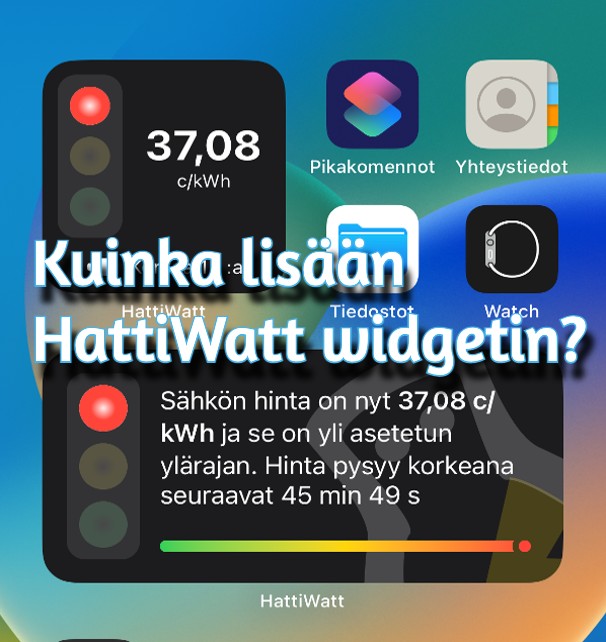
HattiWatt uses widgets that show everything important at a glance. The fun traffic lights also work well for the youngest members of the family.
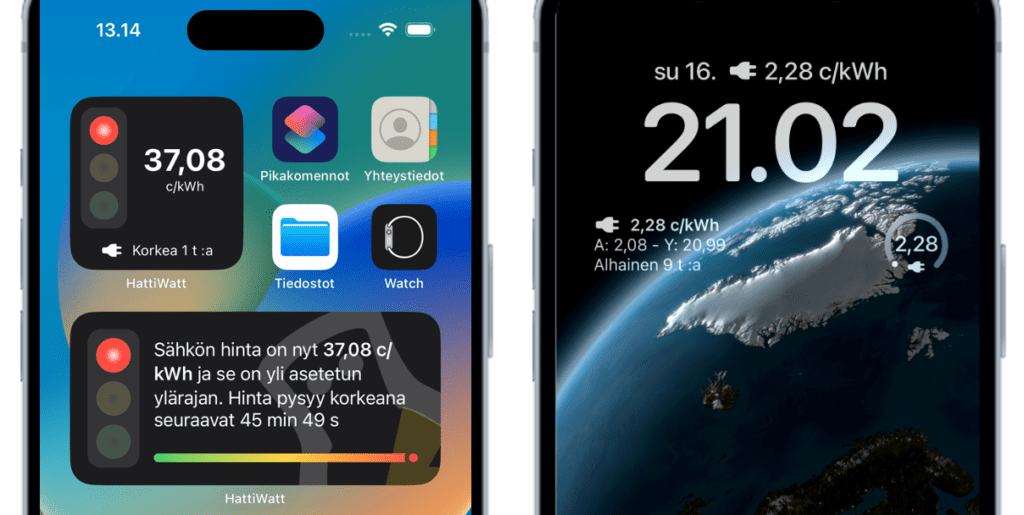
How do you add HattiWatt widgets easily?
Follow the instructions below, or watch the videos, to add a widget to your iPhone or iPad.
Home screen widget:
- Go to any home screen where you have other app icons.
- Touch and hold the screen until the icons start to jiggle and a small mark appears in the corner of each one.
- Select the + button in the top left and scroll down until you find the HattiWatt icon.
- Select HattiWatt and the widget appears. You can choose the version you want by swiping right and back. Then tap the Add Widget button at the bottom.
- The widget appears on your screen, and you can drag it to the place you want.
Lock screen widget:
- Go to the lock screen while the phone is locked and press the screen until the Customize button appears at the bottom.
- Tap the button and select the lock screen. You will see framed areas where you can choose where to add the widget.
- Select a frame and the widgets appear. Scroll down and choose HattiWatt.
- You will see the options for that frame and can choose the one you prefer. You can also arrange the widget position or remove existing widgets at this stage.
Remember that you can always add more than one widget by repeating the steps.
Videos for adding widgets: